Make a list and send it
1
Make a list
The first time you open setlist.DJ, the home page makes a list for you straight away (Making your list. One
moment.) and opens it. You are a guest in this browser from then on.After that, and after you sign out, the home page waits for you: make a new list with New list, the yellow button in the header and on the home page. On a
computer you can also start with the tracks: drag them onto the box Or start with the tracks on the home page,
and a list is made for them.A new list that you leave without doing anything on it is not kept, and it never shows under Your lists. Give
it a name or a track and it stays. If you come back to it later, the page says No list here, with New list.
2
Name it
Click Name the set at the top and type the name of the set: the night, the room, the slot. It is saved when
you click elsewhere or press Enter. Once the list has tracks, a line under the name takes a description: the crowd, the vibe, the plan.The first time you change anything on a list, setlist.DJ asks Who’s this?. Type your DJ name, as it is on the
flyer, and press That’s me. Your name then goes next to what you add, rate and say, so the others know who did
what. If you already have an account, press Or sign in instead.
3
Add your first tracks
On a new list the panel for adding tracks is open under the name. On a computer it opens on From Spotify, with
three more ways beside it: Paste links, Import from rekordbox and Type a track. Mix them as you like.A whole Spotify playlist comes in from its link: in Spotify, Share the playlist, copy the link and paste it.
Every way is explained in Add tracks.Once the list has tracks, the panel moves under the table. Add tracks at the top of the list takes you back
to it.No tracks to hand yet? See Try it with a sample set below.
4
Add the date, venue and times
Click Add the date and venue under the name. This opens List settings, which you can also open from the
menu with three dots. Fill in the Date, the Venue and the times the set Starts and Ends, then
press Save. An end past midnight is fine: 23:00 to 01:00 is a set of two hours, and the panel says so
(That’s 2 h.).The line under the name now reads like a flyer, with the date, the times and the venue. Under it a second line
says how full the set is, with a thin bar, such as 12 tracks · 45 min of 4 h · 3 h 15 to go, about 52 tracks. To
change them later, click the date, times or venue in the line under the name. The other settings in the panel,
Played per track, The crowd and The sound, are explained in
Order the set.
5
Send the link to the other DJs
Press Share, then Copy beside The link, and paste it in your crew chat. Once the list has three tracks,
a line under the buttons at the top asks Playing b2b? Send it to the other DJ., with WhatsApp, Share (on
a phone) and Copy, so you can send it from there too. A new list’s link is set to
Can edit, so the others can add, move and remove tracks as soon as they open it. Whoever has no account joins as a
guest, and everyone gives a DJ name the first time they change something.Anyone who has the link can open the list; there is no private list at the moment, so send it only to the people
you want on it. To let them comment or only look, choose Can comment or Can view in the same panel. Only
you, as the owner, can change this. See
Share and collaborate.
6
Keep it
The link keeps the list for as long as you have it. As a guest, though, it is this browser that ties your lists
to you: on another device you only have what the link gives. To find your lists from any device, and to stay the owner there,
sign in.Press Sign in in the notice at the top of the list, or choose Sign in to find this list later in the menu
with three dots. Type your e-mail address and press Send me a link: the link in the mail signs you in, works
once and lasts 15 minutes. Or press Continue with Google. The list, your stars and your comments move to your
account, and Your lists in the header shows them wherever you open the site.
Try it with a sample set
To see what setlist.DJ does before you bring your own tracks, press Try it with a sample set on an empty list. It sits under the first step of the panel for adding tracks, after No tracks to hand?, on a computer and on a phone. Ten made-up tracks land on the list, by made-up artists, with their BPM, key and energy already filled in, and in no sensible order on purpose. A line under the buttons at the top then says what to try: press Analyse set, choose a build-up and see the order it proposes. You can star, react, comment, move and remove the sample tracks like any others. When you are done, press Clear the sample in the same line. Every sample track goes at once, with what was said about them, and none of them waits under Removed. Tracks you added yourself stay. The history keeps one line for adding the sample and one for clearing it. While the sample is on the list, the line that asks you to send it to the other DJ waits: made-up tracks are nothing to send. If you open a list someone shared that holds made-up tracks and you can only look, a line says so; choose Duplicate list in the menu with three dots to get a copy of your own to try things on.On a phone
A phone shows the same list with less around it. On a first visit the list is empty and there is one thing to do: Add your first tracks. A phone cannot drag tracks in from another app, so the panel shows three ways in: Paste links, Import from rekordbox and Type a track. Above them, after No tracks to hand?, Try it with a sample set puts ten made-up tracks on the list to try things on. In Spotify, YouTube or SoundCloud, tap Share on a track or a whole playlist, copy the link and paste it in the field. Several at once is fine, one per line.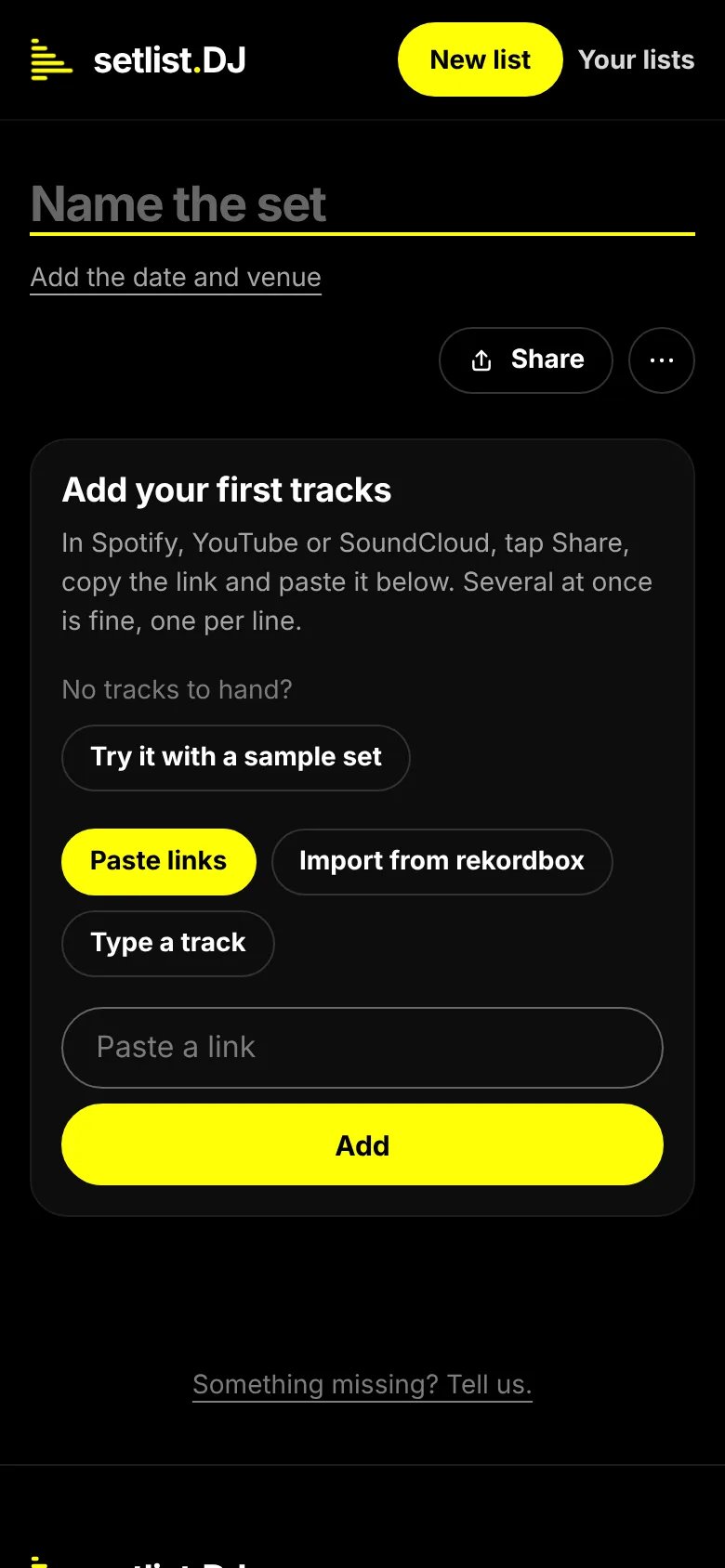
A first visit on a phone: a new, empty list with one clear next step.
What next
- Add tracks: every way to bring tracks in.
- Read the list: what the columns, the SET score and the build-up tell you.
- Order the set: drag the tracks, or let Analyse set propose an order.
- Share and collaborate: who may do what, stars, reactions and comments.