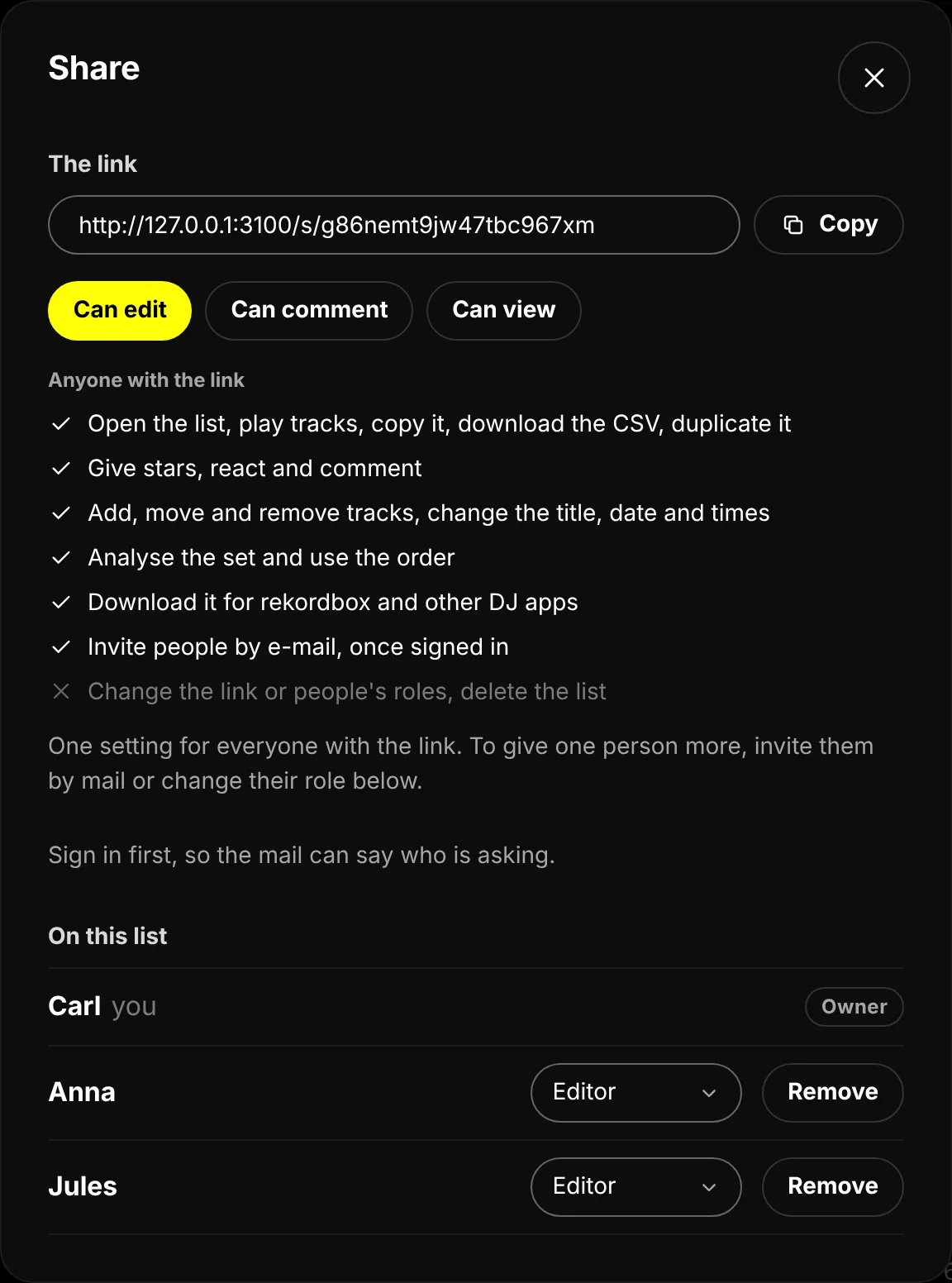
The share panel of a list with three DJs. The link gives Can edit, and the list under it says what that allows.
Send the link
The link is the list. Every list has one web address, and it is the only way in. Press Share, then Copy beside The link, and paste it wherever your crew talks: a group chat, a mail, a message. The button says Copied for a moment. If your browser does not let the site copy, click in the field and copy the address yourself. Everyone who opens the link opens the same list. Nobody needs an account for it. Once your list has three tracks and nobody else is on it yet, a slim line under the buttons at the top asks Playing b2b? Send it to the other DJ. It saves you opening the panel:- WhatsApp opens WhatsApp with a short message and the link, ready to send to the other DJ or the crew chat.
- Share, where your browser offers it (on a phone, and on some computers), opens your device’s own list of apps to send it with.
- Copy copies the link; the button says Copied for a moment.
What the link gives
The three pills under the link set what anyone with the link may do. It is one setting for everyone who has the link.
A new list starts on Can edit, because the usual case is a crew working on a set together. Lower it to Can
comment or Can view when the link travels further than the crew. Under the pills, Anyone with the link lists
what the chosen pill allows, each line ticked or crossed, so you can check before you send it.
Only the owner, the person who made the list, changes the pills. After a change the panel says so, for example
Saved. The link now gives can comment. Everyone else sees the pills greyed out and the line Only the owner changes
links and roles. The last line under Anyone with the link is always crossed: changing what the link gives,
changing people’s roles and deleting the list are for the owner alone, whatever the link gives.
Someone who opens a list with less than Can edit sees a grey line at the top that says what they can do:
- Can comment: You can star, react and comment. Moving and adding tracks is for editors.
- Can view: You can look, not touch. Ask the owner for the edit link.
Invite by e-mail
To give one person more than the link gives, invite them by e-mail. You can invite once you are signed in, as the owner or as an editor. As a guest you see Sign in first, so the mail can say who is asking. See Account and privacy.1
Type the addresses
Under Invite by e-mail in the share panel, type one address or several, separated by commas.
2
Choose the role
The menu beside the field sets what they get: Editor (the default), Commenter or Viewer. An invitation
never gives less than the link: while the link says Can comment, the menu offers Editor and Commenter
only, and a line under the form says The link already gives can comment, so an invitation gives at least that.
3
Send it
Press Invite. The panel says Sent. Their mail has an invitation link: one tap and they’re on the list, signed
in. An address that does not look like one is skipped, and the panel says how many.
Accepting an invitation
The invited person gets a mail from setlist.DJ that names you and the list, with a button, Accept the invitation. It opens a page that says who invited them, onto which list and as what, and which address they will be signed in with. They press Accept invitation and they are on the list, signed in, no password:- No account yet with that address: accepting makes one and signs them in. If they had already been working on lists as a guest in that browser, all of it comes along, the DJ name included.
- Already signed in with that address: accepting opens the list.
- An account with that address, not signed in here: the page asks them to Sign in with it first, with the e-mail link, a passkey or Google. An invitation never signs anyone into an existing account by itself: the mail could have been forwarded.
Waiting, expired and sent again
The owner sees an invite waiting under On this list, with the address, the role and a line such as Invited 2 days ago, open until 18 Nov. The owner can take it back with Withdraw; the invitation link then stops working and the mail leads nowhere. After 14 days an invite that nobody accepted shows Expired, with Resend invitation. Pressing it sends a new mail with a new link that holds another 14 days; the old link stops working. Inviting the same address again does the same and can change the role. Someone who opens an expired invitation sees This invitation has expired and is asked to get a new one from you.The people on the list
People join the list when they open its link, or, on a first visit, when they first change something on it. The page then tells them, for example You’re on “Friday at Garage Noord” as editor. The initials beside the buttons at the top of the list are the people on it; point at them for their names and roles. The share panel lists them in full under On this list, each with a badge: Owner, Editor, Commenter or Viewer. Your own name has you after it, and a guest’s name has guest after it: someone who has not signed in, whose name is the one they typed. The owner sees a menu beside each person instead of the badge:- Change a role: pick Editor, Commenter or Viewer in the menu beside their name. It is saved at once.
- Remove someone: press Remove. The panel says Anna is off the list. Their stars and comments stay.
A person never has less than the link gives. While the link says Can edit, setting someone to Viewer does not
stop them editing, and someone you removed is back with Can edit the next time they open the link. To hold
someone back, lower the link first, then change their role. Lowering the link does not lower the people already on
the list: an editor stays an editor.
Your DJ name
Every change on a list carries a name, so the others know who added, rated and said what. Looking never asks for one. The first time you change something (a star, a reaction, a comment, a track added or moved, the title), setlist.DJ asks Who’s this? first. Type your name under Your DJ name, as it is on the flyer, and press That’s me. Two letters will do, sixty is the limit. What you were doing then goes through. If you have an account, press Or sign in instead. Close the question and nothing changes. You are asked once. Your name then shows on every list you join. Once you are signed in, you can change it on Your lists, under Your name on lists (see Your DJ name).Guests
You do not need an account to make a list or to join one. Without one you are a guest in this browser. A guest starts with a placeholder name, such as Opener or The one with the USB, until they type their own DJ name. A guest can do everything the link gives, with two exceptions, because a guest has no e-mail address:- A guest cannot invite anyone by e-mail.
- A guest cannot be mailed. When you mention a guest in a comment, they see it on the list, not in their inbox.
Talk about the tracks
Everyone who can comment or edit gives stars, reacts with an emoji and comments on each track. The comments live in the track drawer, under Discussion. To tell someone in particular, type @ in the comment field and pick their name from the people on the list. Someone who has signed in gets a mail with your comment and a button, Reply on the list, that opens the track’s discussion. The mail goes out when you are signed in yourself; after you send the comment, a line says who got one. People who can only view the list cannot be mentioned. See Reactions and comments and Discussion.Working at the same time
You do not need to reload. While the list is open, what the others do shows up on your page within a few seconds: new tracks, moves, stars, reactions and comments. When two people move tracks at the same moment, the last move wins and both pages settle on the same order. Every change is kept in the list’s history, with who did it. Open it with History in the ⋯ menu. See Take it to the booth.If the link went further than you meant
The link stays the same; there is no way to swap it for a new one. If it reached people it should not have:- Open Share and lower the link to Can comment or Can view.
- Under On this list, see who came in, then change their role or press Remove.
Questions
Can I make a list only the people on it can open?
Can I make a list only the people on it can open?
Not at the moment. Every list opens to its link. Send the link only to the people you want on the list, and lower
it to Can view if it has to travel further.
My list shows a fourth pill, Only people on the list
My list shows a fourth pill, Only people on the list
That is an older list that was closed to its link before this choice went away. It still opens only for the
people on it, and the panel says This list opens only for the people on it, a choice that is going away. Once
you pick one of the other pills, the list opens to its link and the fourth pill cannot be chosen again.
An editor cannot change the pills or people's roles
An editor cannot change the pills or people's roles
That is how it works. Editors add, move and remove tracks and invite people by e-mail, but only the owner changes
what the link gives and who has which role.
The invite form says the site can't send mail
The invite form says the site can't send mail
The panel then says This site can’t send mail, so invites go by link: copy it above and send it yourself. Copy
the link and send it in a message; the person gets what the link gives.
Someone I invited still has only what the link gives
Someone I invited still has only what the link gives
The role comes with accepting the invitation, or with signing in with the address you invited. Ask them to press
Accept the invitation in the mail, or to sign in with that address and open the list again. As the owner, you
see an invite that waits under On this list, with the day it is open until. If it shows Expired, press
Resend invitation.
Someone shows as guest under On this list
Someone shows as guest under On this list
They opened the link without signing in, so their name is the one they typed. To have them on the list with their
own account, invite their address: once they accept, the guest and the account are one, with everything they did.
Can someone who only views the list take it with them?
Can someone who only views the list take it with them?
Yes. Everyone with the link can copy it as text, download the CSV and make a copy of their own. Only the downloads
for rekordbox and other DJ apps are for editors. See Take it to the booth.