Move tracks in the table
1
Drag a row
On a computer, take hold of a row (the drag handle at the end of each row shows where) and drag it up or down. A
thin yellow line shows where it will land. Let go and the track takes its new place; the numbers in front of the
rows count again from 1.
2
Or use the menu
Open the menu with three dots at the end of the row and choose Move up or Move down. This is the way on a
phone and with the keyboard: tab to the menu, open it and pick the move. Move up is greyed on the first track,
Move down on the last.
While a proposed order is on screen with Proposed chosen, the rows cannot be moved. Choose Now to see the list
as it is and move tracks there. See The proposed order.
The timeline
Once the list has two tracks or more and setlist.DJ knows something about them, The set as it stands sits above the table: the build-up of the set in one drawing.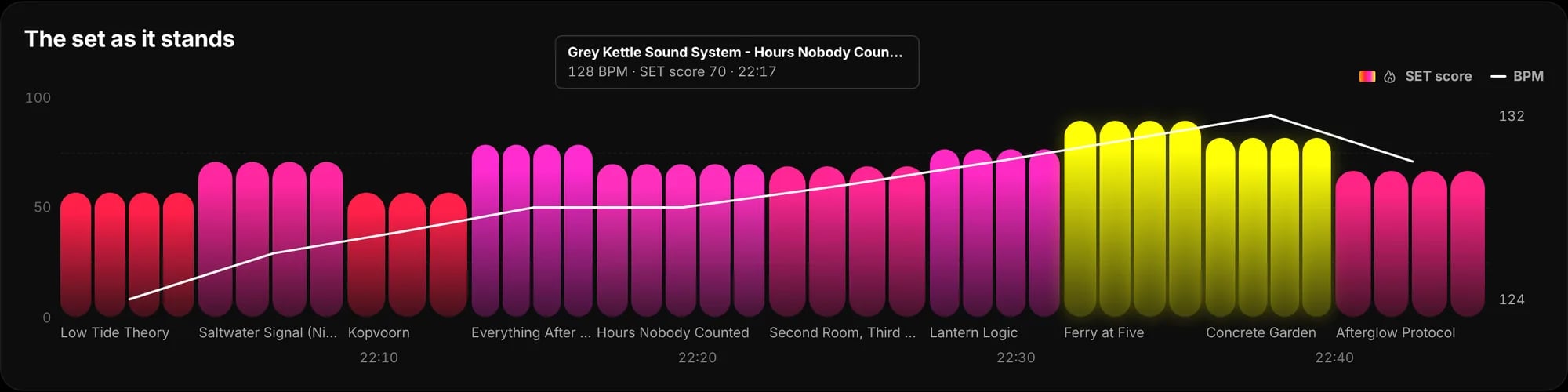
The timeline of a set from 22:00, with the pointer on one track. The bars are the SET score, the white line the BPM.
How to read it
Hold the pointer on a track to see its title, its BPM, its SET score and the time it starts. A click or a tap on a
track opens it in the table, in its drawer, with its details and the play button.
Drag along the timeline
If you can edit the list, you can also move a track on the timeline. Press on it and drag it sideways: the drawing makes room as you go, and the track you hold is ringed in yellow. Let go and the move is made, as it would be in the table. A press without moving opens the track, as a click does. On a touch screen a sideways drag moves the track and an upright one scrolls the page.List settings
If you can edit the list, choose List settings in the menu with three dots, or click the date and venue line under the title (on a new list it reads Add the date and venue).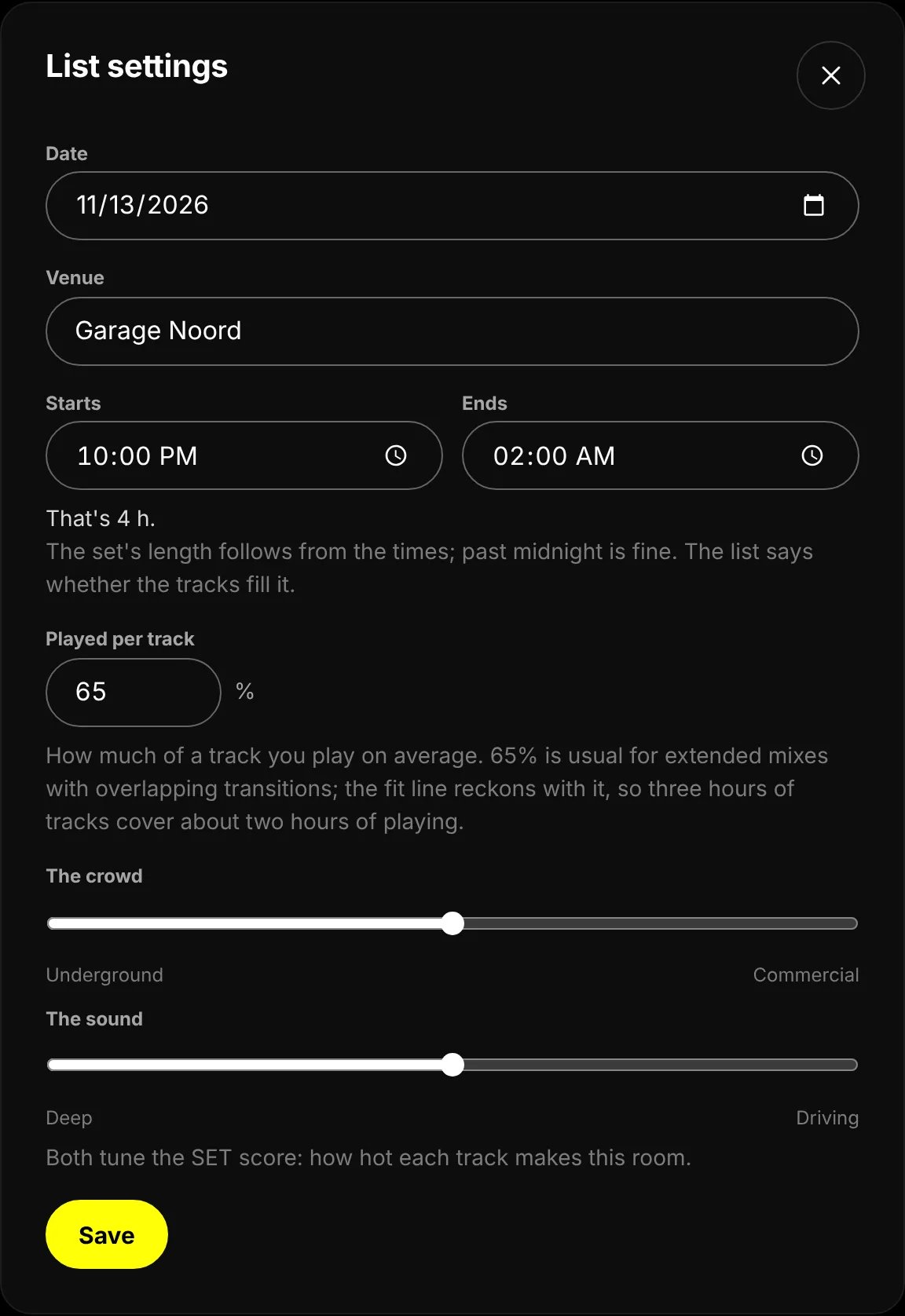
List settings for a set from 22:00 to 02:00: four hours, played at 65% a track, both dials in the middle.
Press Save. The line under the title then says whether the tracks fill the set. It reckons with Played per
track: Played at 65% a track, that covers 1 h 57 of the 2 h., followed by 3 min still to fill., That fits, to
the minute. or 36 min to spare: room to read the floor.
The SET score
The SET score says how hot a track makes the room, from 0 to 100. It is the SET column with the flame in the table, the height and colour of the bars in the timeline, and what Analyse set builds the set with. The flame turns yellow from 80. setlist.DJ works it out from what it knows about the track: its energy, its groove (how danceable it is), how popular it is, how loud the master is, how fast it is compared with the rest of the set, and its mood, dark or euphoric. BPM, key and energy are found for you when the track is known; they are estimates, so trust your ears over the number. The two dials in List settings decide how much each part counts, for this list only:- The crowd, from Underground to Commercial, decides how much it matters that people know the track. For a commercial crowd the room singing along is a large part of the heat; for an underground one it hardly counts.
- The sound, from Deep to Driving, moves the weight from the groove to the push. A deep, hypnotic set rates the groove; a driving set rates energy, loudness and tempo.
Analyse the set
Analyse set, at the top of the list beside Add tracks, puts the set in an order that mixes well along the build-up you choose. It shows that order as a proposal first. Nothing moves until someone with edit rights accepts it. The button is there for people who can edit, once the list has two tracks or more.What it goes by
setlist.DJ orders the set by rules, with what it knows about each track: the BPM, the key and the SET score.- Tempo first. A build-up is a tempo build. Where the build-up rises or holds, the order keeps the tempo from dropping back: no track more than one BPM under the fastest one since the climb began. Where the build-up comes down (a closer, a cooler, a breather), the tempo may come down with it, gently. Half and double time count as the same tempo, so a 70 BPM track sits with the 140s.
- Then the key. Tracks in the same key, one step round the Camelot wheel, or the relative major or minor follow each other where they can. Every other change is a key jump.
- Then the energy. Small steps in energy flow; big ones lurch. The SET score of each track is fitted to the height the build-up asks for at that point in the set.
Choose a build-up
1
Open the dialog
Press Analyse set. The dialog Analyse the set says how many tracks it will analyse, and that the old order
can be put back from the history.
2
Pick the build-up
Under The build-up, pick how the set should rise and fall. Each card shows the curve and its phases. The
dialog opens on the build-up the list was analysed for last time, by whoever asked, and on Peak time the first
time.
3
Press Analyse
Press Analyse. It says Analysing. for a moment, then the dialog closes and the proposed order takes the place
of the timeline. Cancel closes the dialog without doing anything.
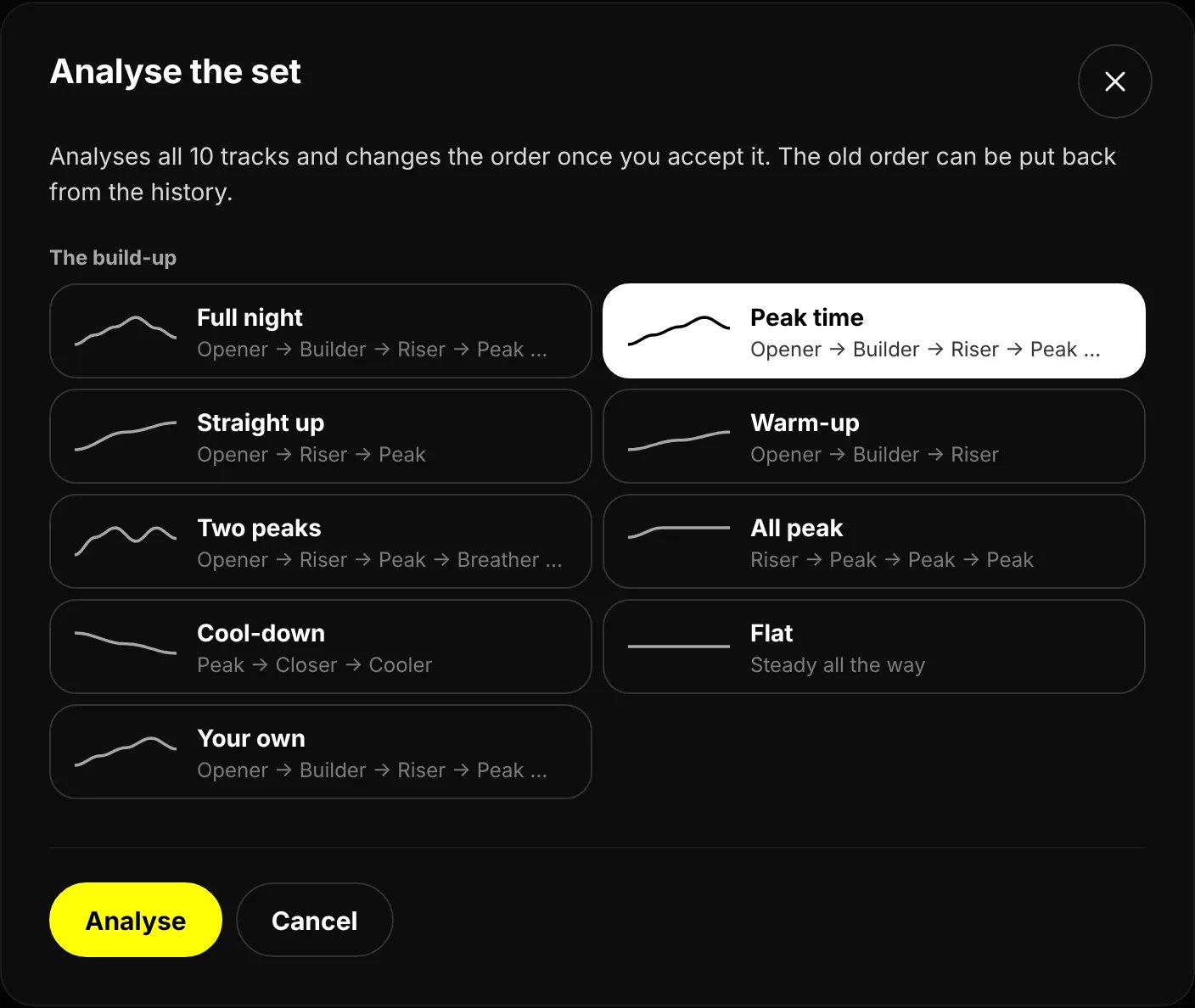
The build-ups to choose from. Peak time is chosen, as it is the first time.
The phases, from quiet to loud: Opener is the quietest part of the set, Cooler the room winding down,
Builder the build, Breather a dip between two peaks, Closer after the peak and still up, Riser the
climb, Peak the highest. The levels are those of your own tracks, so a peak in a deep set is still deep.
Your own build-up
Choose Your own and tap the phases in the order you want them, two to eight. Each phase you tap goes on the end of the chain, and any phase may come more than once. The chain starts from the build-up you had chosen, so you adjust rather than start from nothing. The × on a phase takes it out, and Start again empties the chain. Once you have analysed with it, the dialog opens on your chain the next time.When it cannot analyse
A track setlist.DJ knows nothing about (no BPM, no key, no energy) is not placed. It keeps its order at the end, and
the proposal says how many: 1 track not placed, at the end. To place it, choose Edit title and artist in the
row’s menu and fill in its BPM or key, or move it where you want it after using the order.
The proposed order
The proposal stands where the timeline was, for everyone on the list.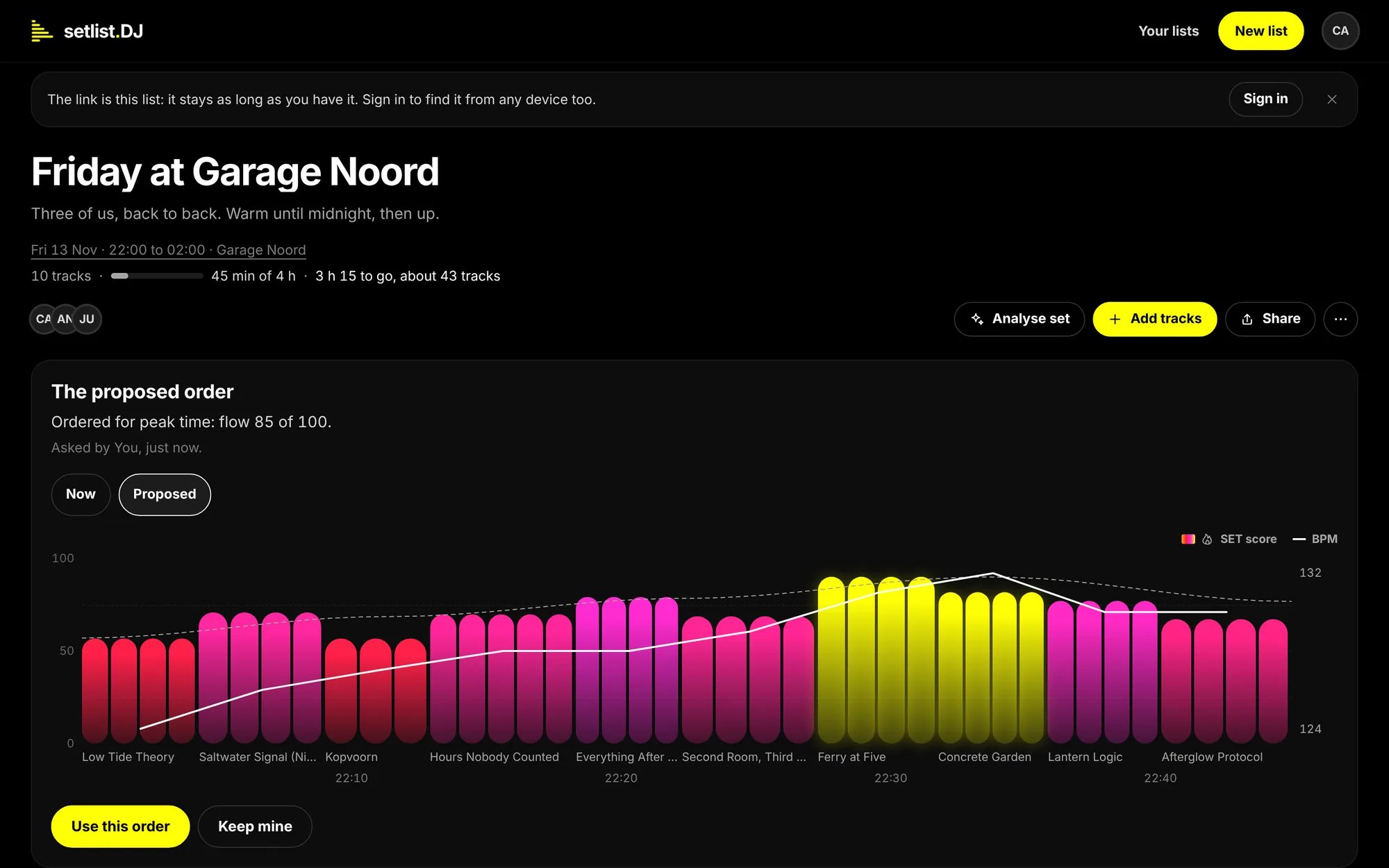
A proposal for peak time. Proposed is chosen, and the dashed line is the shape the order follows.
- The first line names the build-up and the flow: Ordered for peak time: flow 85 of 100. The flow says how well each track mixes into the next, on key, tempo and energy, as an average from 0 to 100. Under it, who asked and when.
- Now and Proposed switch the timeline and the table between the list as it is and the proposed order. Proposed is chosen first. In the timeline a dashed grey line shows the shape of the build-up.
- In the table, in Proposed, every track shows how far it moved: ▲ 4 for a track that climbs four places, ▼ 1 for one that drops. Under each title but the first is one line about the step into it, such as Mix 88 · 7A → 6A · +6 BPM · energy +14: how well it mixes, from 0 to 100, then the change of key, tempo and energy from the track before. Stars, reactions, comments, the drawer and the player keep working.
- Use this order writes the proposed order to the list (Done. The old order is in the history.). A track added since the analysis goes at the end.
- Keep mine closes the proposal, and the list stays as it is (Kept your order.).
Put the old order back
Open History in the menu with three dots. The line Carl used the analysed order for peak time, flow 82 of 100 has Put the old order back beside it, for people who can edit. Press it and the list is back in its old order (The order is back as it was. Tracks added since sit at the end.). Moves made by hand since then are undone too. The button stands only beside the latest analysed order that has not been put back yet.What next
- Play tracks: listen through the set in its new order.
- Share and collaborate: who may move tracks and analyse the set.