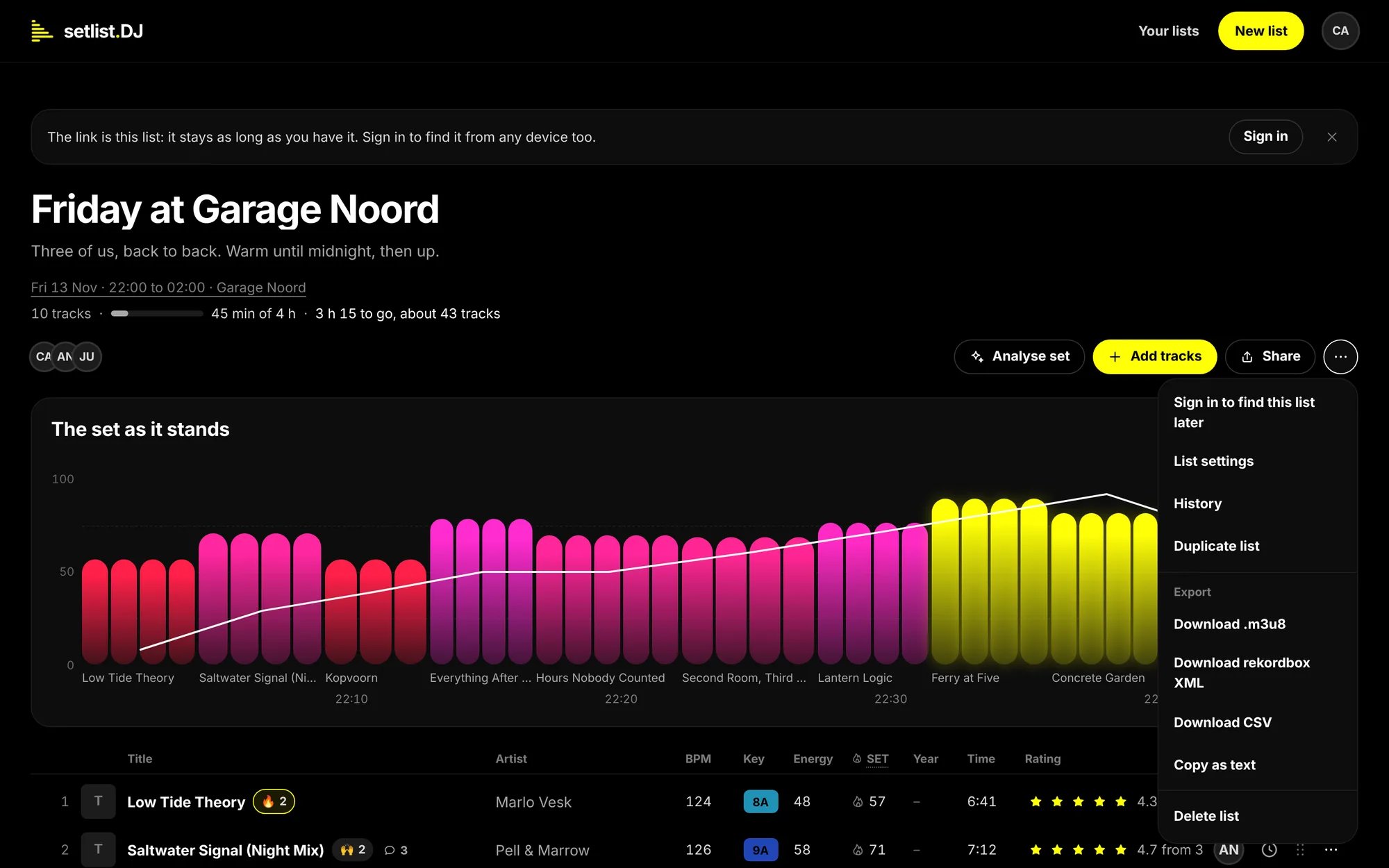
The ⋯ menu of a list, with the exports under Export.
What is in the menu
The Export items show once the set has tracks. The two downloads for DJ apps are for editors, because they can
hold the paths to the DJs’ own files on their computers. The spreadsheet and the text hold none, so everyone may take
those.
The downloads for DJ apps and Copy as text hold the set, in its order. Tracks on Maybe stay on the page. The
spreadsheet holds both.
Into rekordbox
Download rekordbox XML first shows what the file does: The XML holds every track with what we know. rekordbox plays the ones that are in your collection (the rows marked Your copy); the rest show up as missing files until you find them. Press Download rekordbox XML again to save the file.1
Point rekordbox at the file
In rekordbox, open Preferences, then Advanced, then Database. Under rekordbox xml, choose the file
you downloaded.
2
Show the rekordbox xml pane
The file now shows as rekordbox xml in rekordbox’s tree on the left. If you do not see it, switch it on under
Preferences, View, Layout.
3
Import the playlist
Open rekordbox xml, find the playlist with the name of your list, right-click it and choose Import
Playlist. It lands among your own playlists.
- Tracks from your rekordbox export, rows marked Your copy, point to the file on your computer. rekordbox plays them as long as the file is still where it was.
- Audio files you dragged in are marked Your copy too, but the site only learns their file name, not the folder they are in. rekordbox shows them as missing until you show it where they are.
- Tracks rekordbox does not have, such as the ones from Spotify, YouTube or SoundCloud, come in as missing files. Get the track, then show rekordbox where it is.
- What setlist.DJ knows goes along with each track: the title, the artist, the length, the BPM, the key, and the album, genre, label and year as far as they are known. Your Notes for the booth go along as the track’s comment.
- Tracks already in your collection keep what rekordbox has for them. rekordbox does not change them from the file.
Into other DJ apps
Download .m3u8 saves the set as a playlist file, which rekordbox, Serato, Engine and VLC read. Each line has the artist, the title and the length. A track from your rekordbox export points to its file on your computer, an audio file you dragged in gives only its file name, and the others point to the track’s page online.Into a spreadsheet
Download CSV saves a spreadsheet of the whole list: the set first, then the maybe list, one row per track, with a List column that says Set or Maybe. It holds every fact the list has: the position, the Title, Artist, Album, Label, Year, Genre and Length, the BPM, the Key by name and as Camelot, the Energy, Danceability, Mood and Popularity, the Loudness (dB), the SET score, the average Rating and how many gave stars, Added by, the Notes, the Source, the Link and the ISRC. Excel and Numbers open it with the accents intact. Use it to keep a record of the night, to compare sets, or to send the facts to someone who does not use setlist.DJ.Into a post or a message
Copy as text puts the set on your clipboard as a numbered tracklist, one line per track:Duplicate a list
Duplicate list makes a copy of your own and opens it. Anyone who can open the list may do this, also with a link that only lets them view. The list says Making a copy. while it works. The copy has its own link, and you are its owner. It takes along:- the title, with (copy) after it, and the description;
- the date, the venue, the times, the played share and the SET score’s dials;
- every track, on the set and on Maybe, in the same order, with its facts and its Notes for the booth.
History
History in the menu opens the whole story of the list, newest first: Every change on this list, newest first. A removed track can be put back from here. Each line says who did what, such as Anna added 14 tracks or Carl moved Marlo Vesk - Low Tide Theory from 7 to 3. Your own changes say You. Stars, reactions and comments are not in it: they are on the rows already.- Removed tracks sit at the top. An editor brings one back with Put it back, at the end of the set or the maybe list it came from, or deletes it for good with Permanently delete. See Removed.
- An analysed order that was used has its own line, such as Carl used the analysed order for peak time, flow 82 of 100. While that order stands, an editor can undo it with Put the old order back. See Put the old order back.
Questions
I see Download CSV and Copy as text, but not the rekordbox download
I see Download CSV and Copy as text, but not the rekordbox download
The downloads for DJ apps are for editors. Ask the owner to give you Editor in Share, or to set the link to
Can edit. See Share and collaborate.
rekordbox shows most tracks as missing
rekordbox shows most tracks as missing
Only the tracks from your rekordbox export can play straight away. The others came from Spotify, YouTube,
SoundCloud or a dragged-in file, and rekordbox does not know where they are on your computer. Get the tracks, then
show rekordbox where they are.
The BPM or the key in rekordbox is not the one on the list
The BPM or the key in rekordbox is not the one on the list
For a track that was already in your collection, rekordbox keeps its own facts and does not take the list’s. The
BPM, key and energy on the list are found by setlist.DJ when it knows the track, and they are estimates.
Can I bring a deleted list back?
Can I bring a deleted list back?
No. Only the owner sees Delete list, and it asks first: The tracks, stars and comments go with it. There is
no undo. Anyone else on the list can take their name off it with Leave this list instead.