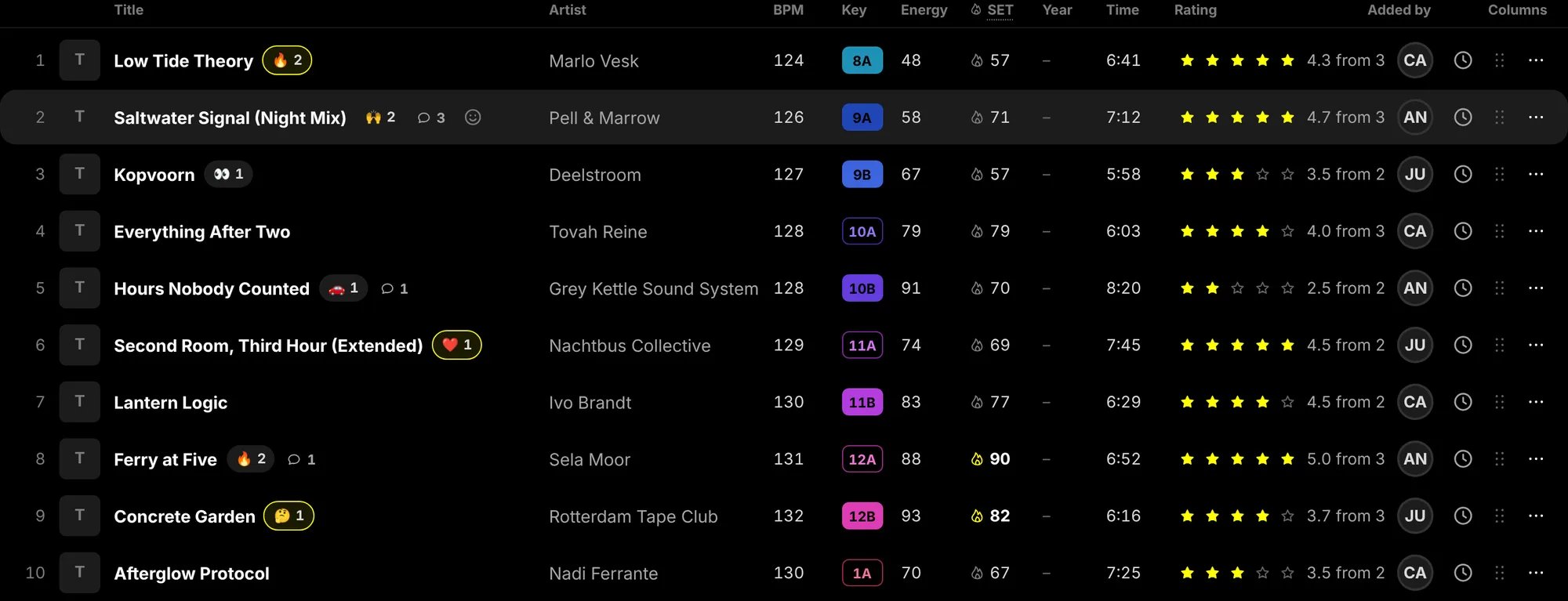
The table on a computer. Reactions ringed in yellow are your own, and so are the yellow stars. The SET flame turns yellow from 80.
The columns
Point at a column head to see what it means. The heads and their explanations:
A dash means the value is not known. BPM, key and energy are filled in for you when setlist.DJ knows the track, and
they are estimates; see Add tracks.
Show and hide columns
Columns, at the end of the column heads, has a checkbox for each column but the title. Untick the ones you do not need and the rest close up. A few more start switched off and are there to turn on:
Your choice is kept in this browser and holds for every list you open in it. It changes what you see, not what the
others see.
On a narrow screen the table makes room: the artist moves under the title, the stars become a second line under it,
and the year, the words (genre, album, label) and the Added by column show only on a wide screen. On a phone the
BPM, key, energy and the other figures give way too; a click on the row still shows everything in the drawer.
Keys
The Key column shows each key as a chip in the colour of its place on the Camelot wheel: twelve colours round the wheel, the minor key (A) a shade darker than its major (B). Neighbours on the wheel have neighbouring colours, so a run of tracks that drifts round the wheel reads as a gradual change of colour.- A solid chip means the key mixes with the track before it: the same key, one step round the wheel, or the relative major or minor.
- An outlined chip means a key jump from the track before.
- No chip means a key the wheel does not know: it is shown as it was written, without colour.
The SET score
SET (with the small flame) scores every track 0 to 100 on how hot it makes the room. It weighs the track’s energy, groove, popularity and loudness for your crowd and your sound, and the crew’s stars nudge it: five stars push it up, one star pulls it down. The flame is grey, and from 80 it turns yellow with the number in bold: a track that sets the room on fire. A track without enough to go on has no score and shows a dash. The crowd and the sound are two dials an editor sets in List settings: The crowd runs from Underground to Commercial, The sound from Deep to Driving. Turn them and every score changes with them. How the score is made, part by part, is in Order the set.Stars
Everyone who can comment or edit gives each track one to five stars. The stars in a row are yours: the ones you gave are yellow. Beside them is the crew’s average and how many gave stars, such as 4.3 from 3. While nobody has given any, the stars are empty and nothing stands beside them. Tap a star to give that many, and another to change it. Tap the star you gave again to take your stars back. The same stars are in the track drawer and in the player bar. Someone with a view-only link sees them greyed out and cannot tap them.Reactions and comments
The reactions sit beside the title, each emoji with how many gave it. Your own are ringed in yellow. Point at one to see who gave it, and tap one to add yours or take it back. To add a new one, point at the row and press the smiley beside the title (React; on a phone it is always there): pick an emoji from the row, or type any emoji. The speech bubble with a number is the comment count. A click on it opens the track on its Discussion.Who added it, and what happened to it
The initials in Added by are whoever put the track on the list. The clock beside them shows the track’s last changes when you point at it or tap it: who added it and where, who moved it and where it landed, who removed it and put it back. For example Carl moved it from 7 to 3, after Marlo Vesk - Low Tide Theory. Show everything, under those lines, opens the track, with its whole story under History. At the end of the row, for an editor, the drag handle moves the track, and the ⋯ menu has Move up, Move down, Move to maybe, Edit title and artist and Remove from list. Moving tracks is in Order the set.The track drawer
A click on a row (or on a track in the timeline at the top) opens the track drawer at the right, with the list still in sight. On a computer the track is on one side and the talk about it on the other, with Discussion and History as two tabs above it. On a phone or a tablet a switch at the top shows one at a time: Track, Discussion and History.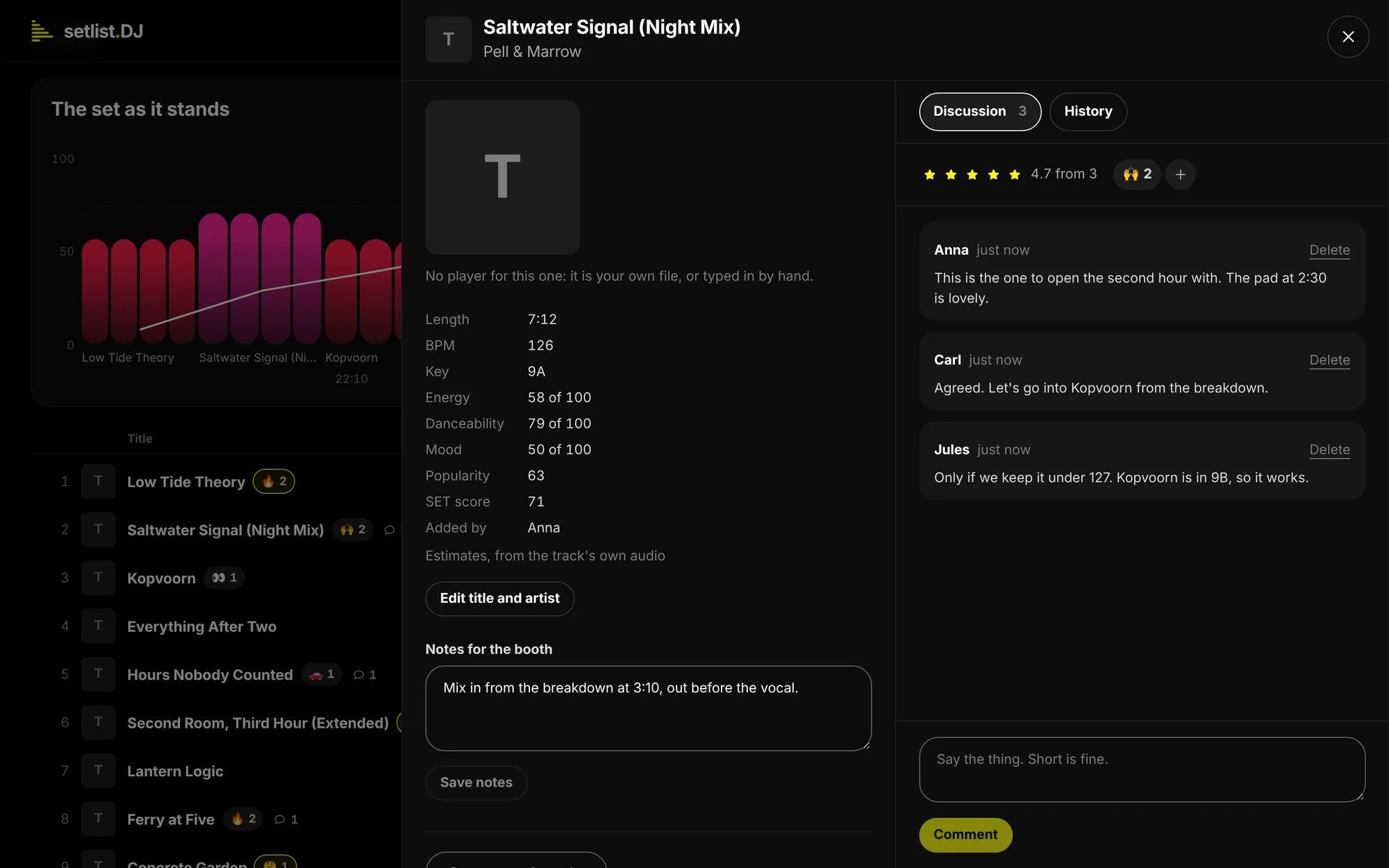
The track drawer: the track and its facts on the left, the Discussion on the right.
The track
- The cover plays the track: press it and the track plays in the player bar at the foot of the window, which keeps playing while you scroll. Press it again to stop. Nothing loads from YouTube, SoundCloud or Spotify before you press it. A track without a player, such as your own file or a typed track, says No player for this one instead. See Play tracks.
- Open on with the source’s name (Open on Spotify, Open on Beatport) takes you to the track’s own page. Beside it a badge with the source’s name, or Your copy for a track from your rekordbox export or your own files, or Not found for a track its source told nothing about.
- The facts: Length, BPM, Key (on the Camelot wheel and by name), Album, Year, Genre, Label, Energy, Danceability, Mood, Popularity, SET score and Added by, as far as they are known. Energy, danceability and mood are out of 100, with Estimates, from the track’s own audio under them.
- Edit title and artist (editors) opens a form for the Title, the Artist, the Length, the BPM and the Key. Use it for a track whose source gave little, or to correct one. Save keeps it, Cancel leaves it.
- Notes for the booth is for the practical things: Cue at the drop, mix out before the vocal, that kind of thing. Editors write them and press Save notes; everyone on the list reads them.
- Remove from list (editors) takes the track off. See Removed.
Discussion
Discussion, with the number of comments beside it, holds your stars with the crew’s average and the reactions, then the comments, oldest at the top, and a field at the foot. Type in the field (Say the thing. Short is fine.) and press Comment. A comment can be up to 600 characters. You can delete your own comments with Delete; the list’s owner can delete any. To tell someone in particular, type @ and pick a name from the people on the list. A person who has signed in gets a mail with your comment and a button to reply on the list. A guest has no address, so they see it on the list instead; the picker marks guests as such. The mail goes out when you are signed in yourself, and after you send the comment a line says who got one. A list sends a limited number of these mails a day; after that the mention still shows on the list. Commenting, stars and reactions are for everyone whose link lets them comment or edit. Someone who can only look reads the discussion but cannot join in.History
History is the track’s whole story on this list, oldest first: who added it and where, every move, every edit, when it went to Maybe and back, and when it was removed and put back.Maybe
Under the set sits Maybe: tracks kept in reserve, not on the set. They keep everything they have (stars, comments, notes, history), but nothing that measures the set counts them: not the track count and the running length under the title, not the timeline, not Analyse set, not the downloads for rekordbox and other DJ apps, not Copy as text. Download CSV has both the set and the Maybe list.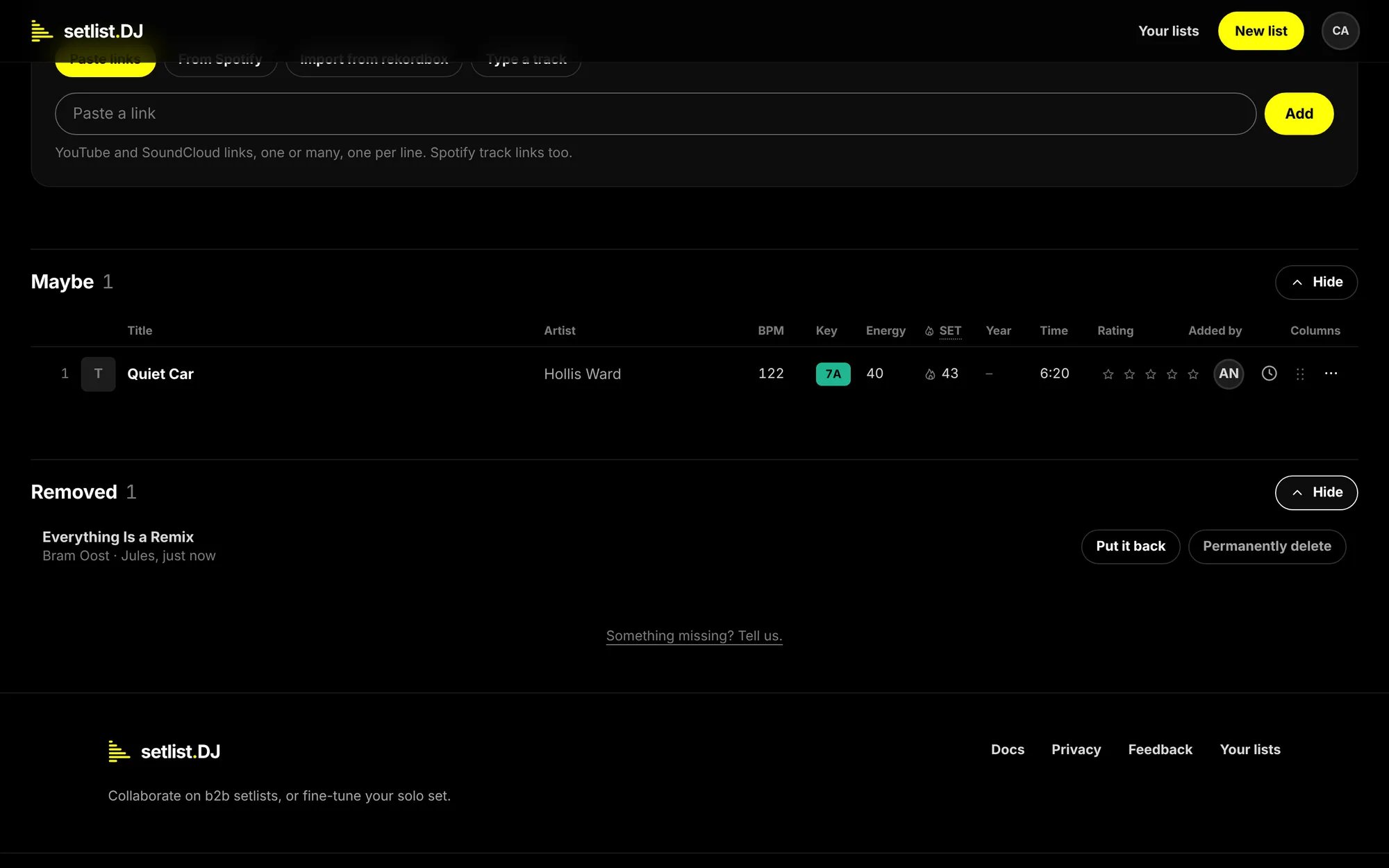
Maybe with one track in reserve, and Removed with one track that can be put back or deleted for good.
- Move to maybe in a set row’s ⋯ menu puts the track at the end of the Maybe list.
- Move to the set in a Maybe row’s ⋯ menu puts it back at the end of the set.
- Drag a row from the set onto the Maybe list, onto a row there or anywhere on the section, even while it is empty or folded away. Drag a Maybe row onto the set to put it back at that place. Within either list, drag to reorder.
Removed
Remove from list, in the drawer or the row’s ⋯ menu, takes a track off. A line says it is under Removed now, with Undo for a few seconds, which puts it back where it was. Removing a track takes its stars, reactions and comments with it. The track itself is kept, with its facts and notes, in Removed at the foot of the page. That section shows only while it holds something and starts folded: press Show. Each removed track shows its artist, who removed it and when. An editor has two buttons on each:- Put it back returns the track to the end of the set, or of the Maybe list if that is where it was.
- Permanently delete asks first: Delete Everything Is a Remix for good? Its notes and its history go too, and nothing brings it back. Added again later, it starts afresh. Press Delete to confirm, or Cancel. The track, its notes and its whole story go. The list’s history keeps one line, such as Jules deleted Bram Oost - Everything Is a Remix for good. If you add the track again later, it comes in as a new track, and setlist.DJ finds its BPM, key and energy again.
Questions
A track has no BPM, key or energy
A track has no BPM, key or energy
setlist.DJ fills them in when it knows the track, usually within a minute of it landing. A track it cannot
identify, such as an unreleased edit, keeps a dash. An editor can type the BPM and key with Edit title and
artist.
A track says Not found
A track says Not found
Its source told nothing about it: the link is private, the track is gone, or the source did not answer. The link is
kept, and the drawer says Private link: fill in the title and artist yourself. An editor does that with Edit
title and artist.
I cannot give stars or comment
I cannot give stars or comment
Your link lets you look, not comment. The stars show greyed out. Ask the owner for a link that can comment or edit.
A column is missing
A column is missing
It may be switched off under Columns, or the screen may be too narrow for it. Open the track to see all of its
facts.
The others see different columns
The others see different columns
Columns is kept per browser. What you switch on or off changes your view only.