Where to add
On a new, empty list the add panel opens at the top of the page, under the title. Once the list has tracks, it moves under the table, with the heading Add tracks. The yellow Add tracks button at the top of the list takes you there, and opens the panel if it is folded away. Hide folds the panel away to keep the page quiet, and Show opens it again; this browser remembers your choice.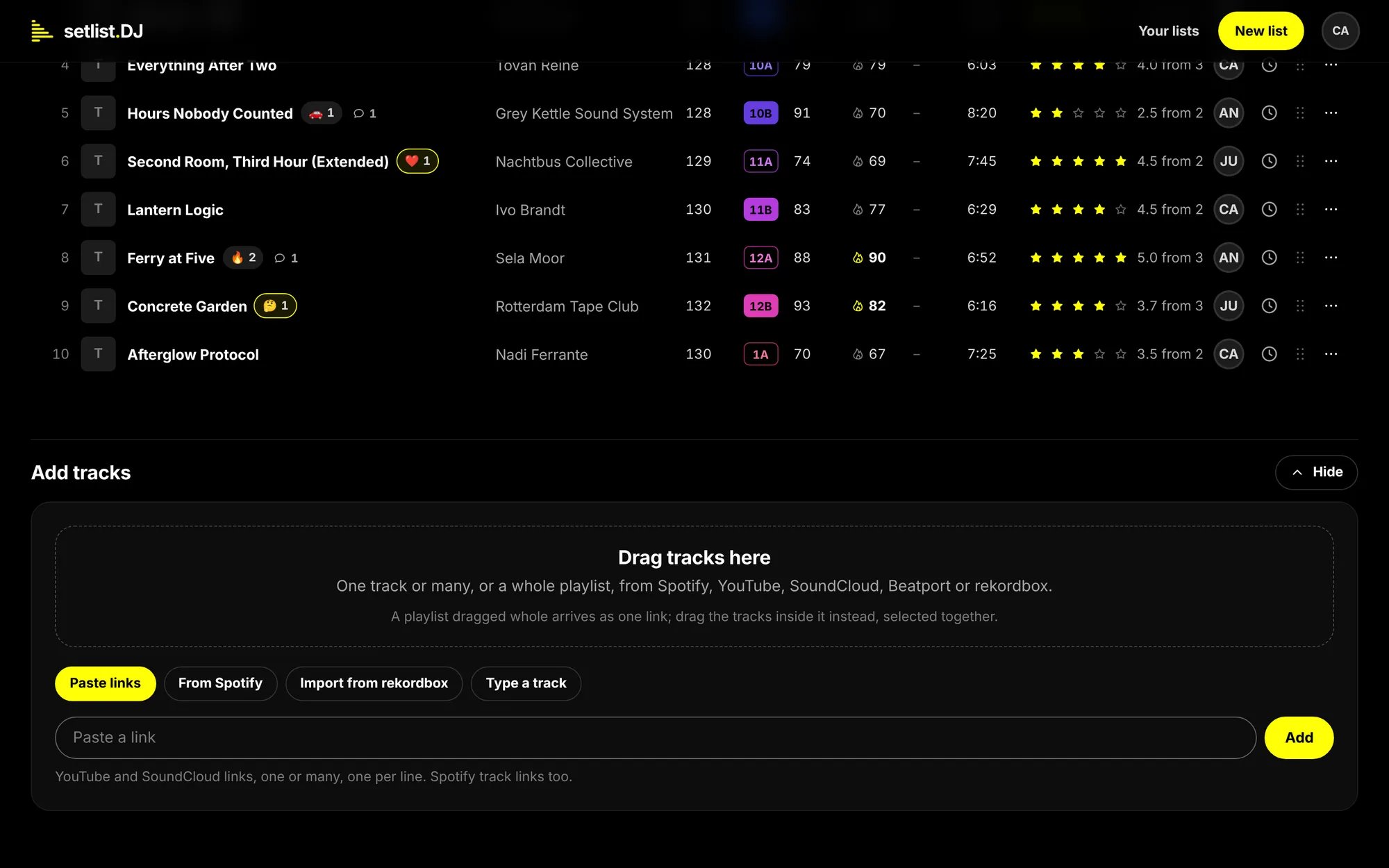
The add panel under the table: the drop box for dragging tracks in, then the four tabs. Paste links is open.
The ways in
Whatever way a track comes in, setlist.DJ then finds its BPM, key and energy, usually within a minute
(BPM, key and energy).
Paste links
Open the Paste links tab, paste one link or many, one per line, and press Add. It takes:- YouTube videos, in any form you copy them: from the address bar, a share button or YouTube Music.
- SoundCloud tracks, short share links included.
- Spotify track links, and a whole Spotify playlist’s link (From Spotify).
- Any other track page, such as a track on Beatport, a release on Bandcamp or an entry on Discogs. setlist.DJ reads the title, the artist and the cover from the page, and keeps the link so you can open it again.
- A YouTube playlist or a SoundCloud set. setlist.DJ asks whether to import the whole lot, with Import all. A video link that also points at a playlist offers Just this one as well. Where the site cannot read playlists or sets, it says so: paste the tracks one by one.
- A playlist, chart or release page on a shop such as Beatport. That cannot be read as a list. Drag or paste the tracks themselves.
- A Spotify album link. Select the album’s tracks in Spotify, copy and paste them (From Spotify).
From Spotify
A whole playlist comes in from its link. The playlist has to be public.1
Copy the playlist's link
In Spotify, open the playlist’s menu (⋯), choose Share, then Copy link to playlist. On a phone, tap
Share and Copy link.
2
Paste it on the list
Paste the link into Paste links or the From Spotify tab and press Add. The badge says Reading the
playlist…, then every track comes in with its artist, length and cover.
1
Open the playlist in Spotify
On your computer, in the Spotify app or the web player.
2
Select every track
Click any track, then select them all: ⌘ A on a Mac, Ctrl A on Windows.
3
Copy
⌘ C on a Mac, Ctrl C on Windows.
4
Paste on the list
Open the From Spotify tab, paste into the field that says Paste the tracks here, and press Add. Every track
comes in with its artist, length and cover.
Drag tracks in
On a computer you can drag tracks straight onto the list: from the Spotify app or web player, from another browser tab, or straight out of rekordbox. The drop box says Drag tracks here, but the whole page takes the drop. While you drag, the page darkens and says Drop them here.- From Spotify, drag a whole playlist from the sidebar, and it comes in as from its link. Or select tracks inside a playlist (click one, then select them all) and drag those over.
- From a browser, drag a track’s link, for example from YouTube, SoundCloud or Beatport.
- From rekordbox or a folder, drag the tracks or files themselves (Audio files).
Import from rekordbox
rekordbox can export your collection as one file, and setlist.DJ reads it in your browser. The file stays on your computer: only the tracks you pick are sent to the list.The collection export
1
Export from rekordbox
In rekordbox: File, Export Collection in xml format. Save the file somewhere you can find it.
2
Bring it to the list
Drop the file anywhere on the list page, or open the Import from rekordbox tab and press Choose a file.
3
Pick a playlist
setlist.DJ shows Which playlist? with every playlist in the export and how many tracks each has. Press Add
these on the one you want.
Playlist files
For one playlist, right-click it in rekordbox and export it as a .txt or .m3u8 file. Drop that file on the page or choose it on the Import from rekordbox tab. setlist.DJ says how many tracks are in it; press Add to bring in the title, the artist and whatever else the file carries. A .csv playlist works the same way, and Serato, Engine DJ, Mixxx and VirtualDJ export playlists in these formats too.Audio files
You can also drag tracks straight out of rekordbox, or audio files from a folder: MP3, AIFF, WAV, M4A and FLAC. setlist.DJ reads the tags inside the files in your browser (the badge says Reading 3 files) and adds the title, artist, album, genre and year, plus the BPM and key where rekordbox wrote them into the tags. The files themselves are never uploaded. A file without tags gets its name split into artist and title. Tracks from a rekordbox export or your own files have no player on the list: the music is on your computer.Type a track
For a track that is nowhere online yet, an unreleased edit or a dubplate, open Type a track. Fill in the Artist, the Title and, if you like, the Length (as 6:52), then press Add track. A title is the one thing it needs.On a phone
On a phone you cannot drag tracks in from another app, so the panel says what to do instead:- In Spotify, YouTube or SoundCloud, tap Share on the track, or on a whole Spotify playlist.
- Copy the link.
- Paste it into the field on the list and press Add. Several at once is fine, one per line.
While tracks come in
A badge counts along, Reading 14 of 48, and the rows appear as they land. When it is done, it says how many were added.- One import at a time. While one is still running, Add does nothing and a drop gets the line One import at a time: this one is still running. Paste or drop again when it is done.
- Duplicates are skipped. A track already on the list is left as it was, and the badge says how many. That includes the same recording from another source, a Spotify track pasted again from SoundCloud for example, when both say which recording it is.
- A full list. A list holds up to 500 tracks, the set and the maybe list together. What does not fit is left out, and setlist.DJ says how many: 12 more didn’t fit: a list holds 500 tracks. Remove some to make room.
- Tracks the source would not describe, because they are private or gone, still go on the list with their link and a grey Not found badge. Fill in the title and artist yourself with Edit title and artist (Read the list).
BPM, key and energy
For every track it can identify, setlist.DJ finds the BPM, key and energy, and the other figures, such as danceability, mood and popularity. They usually arrive within a minute of the track landing, and the page fills them in by itself. They are estimates. Where a track already has a BPM or key, from your rekordbox collection for example, or because someone typed it, that stays as it is. A track setlist.DJ cannot identify, such as an unreleased edit, keeps a dash in those columns. If you can edit the list, type its BPM and key yourself with Edit title and artist, in the row’s ⋯ menu or the track drawer.If a track does not come in
It says: Nothing in there we recognise
It says: Nothing in there we recognise
The text you pasted holds no link setlist.DJ can read. Paste a Spotify, YouTube, SoundCloud or Beatport link,
another track page, or drop a rekordbox file.
It says: That's a playlist link
It says: That's a playlist link
A Spotify playlist or album link cannot be read. Open it in Spotify, select all the tracks, copy, and paste them
instead (From Spotify).
I dragged a playlist in and got one link
I dragged a playlist in and got one link
You dragged the playlist itself. Open it, select the tracks inside it and drag those.
It says: Nothing in that drop we can read
It says: Nothing in that drop we can read
The drop arrived empty, or it was an image. Drag the tracks themselves, or copy them and paste them in Paste
links.
It says the files are not tracks or a rekordbox export
It says the files are not tracks or a rekordbox export
setlist.DJ reads audio files (MP3, AIFF, WAV, M4A, FLAC), a rekordbox collection export, or a .txt, .m3u8 or .csv
playlist. For the collection, export it from rekordbox with File, Export Collection in xml format.
It says: Nothing came through
It says: Nothing came through
The source did not answer. Try again in a minute.
It says: All already on the list
It says: All already on the list
Every track you pasted is on the list already, so there was nothing new to add.
There is no add panel
There is no add panel
Your link lets you comment or look, not edit. Ask the list’s owner for a link that can edit.